

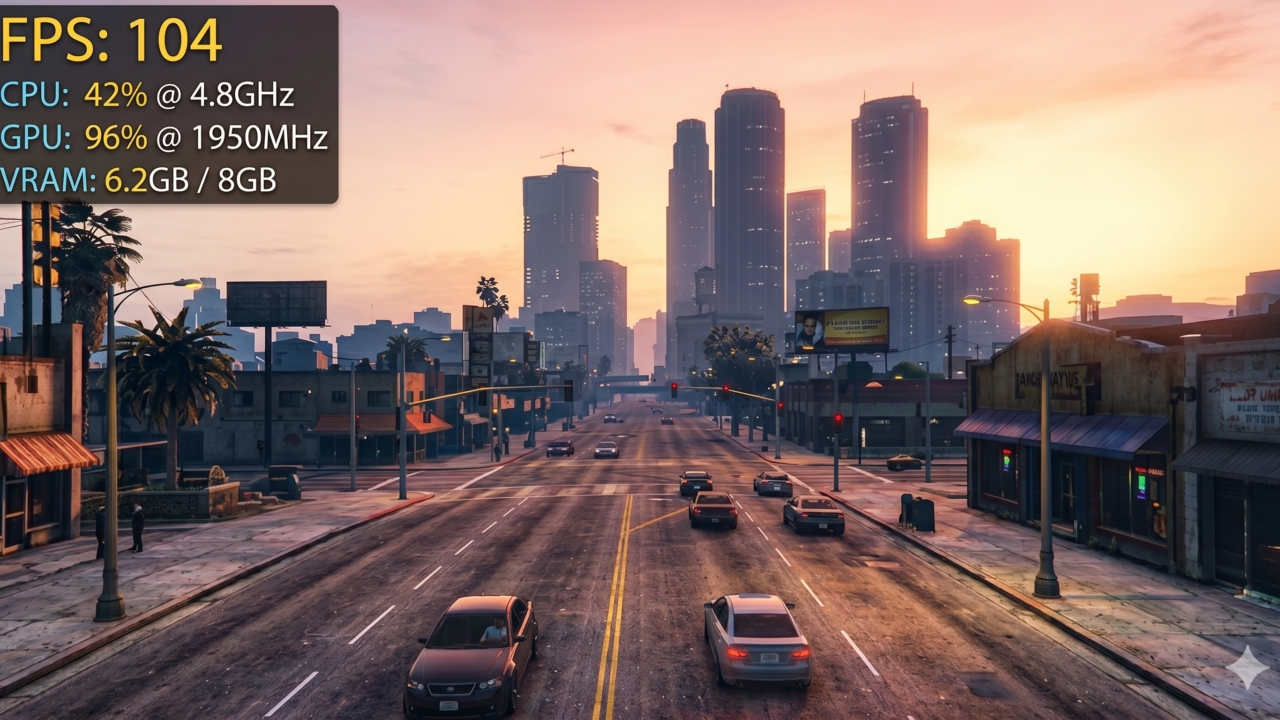
The Ultimate GTA 5 FPS Boost Guide: Optimize Your Los Santos Experience
Grand Theft Auto V remains one of the most popular open-world titles on the market, but despite its age, the RAGE engine can be surprisingly demanding on modern hardware. Whether you are navigating the dense urban sprawl of Los Santos or driving at high speeds through the Blaine County countryside, maintaining a stable frame rate is crucial for a responsive and enjoyable experience.
High frame rates in GTA 5 are not just about visual fluidity; they are essential for precise driving control and combat accuracy. If you are experiencing stuttering, micro-freezes, or overall low performance, this guide will walk you through the precise technical adjustments needed to optimize your game.
Why FPS Drops Happen in GTA 5
GTA 5 utilizes the Rockstar Advanced Game Engine (RAGE). Unlike modern titles that rely heavily on GPU power, GTA 5 is notoriously CPU-intensive, particularly regarding population density and draw distance.
When you encounter frame drops, it is rarely a single hardware component failing. Instead, it is usually a combination of three factors:
-
Engine Overhead: The game has to process complex AI pathfinding for pedestrians and traffic, which puts a significant load on your CPU.
-
Graphics Settings Imbalance: Settings like Multi-Sampling Anti-Aliasing (MSAA) and Grass Quality are computationally expensive and can tank frame rates even on mid-range hardware.
-
VRAM Limitations: If you are playing at higher resolutions (1440p or 4K) without sufficient video memory, the game will struggle to cache textures, resulting in stuttering.
If you are generally struggling with performance across your library, refer to our comprehensive guide on how to increase FPS in any game for system-wide optimizations.
Main Solution: Recommended Graphics Settings
To achieve a stable 60+ FPS, you must balance visual fidelity with raw performance. Navigate to the Settings > Graphics and Advanced Graphics tabs in the pause menu and apply the following changes.
1. The Core Graphics Tab
-
DirectX Version: Ensure this is set to DirectX 11. While DirectX 10.1 is less demanding, it does not support the optimizations available in modern GPU drivers.
-
Texture Quality: Set to High or Very High if you have 4GB+ VRAM.
-
Shader Quality: High. This provides a great balance between lighting quality and performance.
-
Shadow Quality: High or Normal. Shadows are one of the biggest performance killers in the game.
-
Grass Quality: High. Note: This is the most demanding setting in GTA 5. Setting this to “Ultra” can reduce FPS by up to 20% in grassy areas like the Alamo Sea.
-
MSAA (Multi-Sampling Anti-Aliasing): Off. This is the single most effective way to boost your FPS. Instead of using MSAA, use FXAA (which is “On”) or sharpen the image via your GPU driver control panel (NVIDIA Control Panel or AMD Adrenalin).
-
Reflection MSAA: Off. Keep this disabled to save significant GPU resources.
2. The Advanced Graphics Tab
-
Extended Distance Scaling: Set to 0% (Minimum). While increasing this improves distant object detail, it places an immense load on your CPU.
-
Extended Shadows Distance: Set to 0%. This reduces the distance at which shadows are rendered for objects far away.
-
Frame Scaling Mode: Keep this at Off (1.000). Never use this to downscale resolution, as it makes the game blurry.
Advanced Tips for Expert Optimization
Once you have applied the base settings, you can push your performance further using external tools and system tweaks.
Optimize via NVIDIA/AMD Control Panel
The in-game settings are only half the battle. You can force better performance via your GPU drivers:
-
NVIDIA Users: Navigate to the NVIDIA Control Panel. Under “Manage 3D Settings,” set “Power Management Mode” to “Prefer Maximum Performance.”
-
Texture Filtering: Ensure this is set to “Performance” or “High Performance” to reduce the load on your graphics card.
Fullscreen vs. Windowed Borderless
Always play GTA 5 in Exclusive Fullscreen mode. Windowed or Borderless modes force Windows to manage the composition of the desktop alongside the game, which can introduce micro-stuttering and increase input latency.
Monitor and Cap Your FPS
If your game is fluctuating wildly between 50 and 90 FPS, it will feel “choppy” because of inconsistent frame times. Use an external tool like RTSS (RivaTuner Statistics Server) to cap your frame rate to a stable number (e.g., 60 FPS). A locked 60 FPS is infinitely more playable than a fluctuating 60-90 FPS.
Common Mistakes to Avoid
Even seasoned PC gamers often make these errors when optimizing Rockstar titles:
-
Overestimating VRAM: Do not push Texture Quality to “Ultra” if your VRAM bar in the settings menu is showing red. The game will swap data from your slower RAM, causing massive lag spikes when you move quickly through the map.
-
Ignoring Resolution: If you are struggling to hit 60 FPS, the most effective step is reducing your resolution from 1440p to 1080p. The difference in image quality is often outweighed by the massive performance gain.
-
Leaving “Population Density” High: If your CPU is the bottleneck, lowering Population Density and Variety in the “Advanced Graphics” menu is the fastest way to stabilize your frame rate in the city.
Expected Results
By following this guide, you should notice:
-
Consistent Frame Rates: Elimination of the massive FPS dips that occur during driving or explosions.
-
Reduced Input Lag: Disabling MSAA and V-Sync helps the game feel much more “snappy” and responsive to mouse inputs.
-
Improved Stability: The game should remain stable even during high-intensity scenes, such as police chases or high-speed navigation in the city center.
While you won’t turn a budget office PC into a high-end machine, these settings allow GTA 5 to remain highly playable on a wide range of hardware, provided you understand the specific trade-offs of the RAGE engine.
Conclusion
Optimizing GTA 5 is about knowing which settings are worth their performance cost and which are purely decorative. By prioritizing CPU-friendly settings like lowered grass and shadow quality, and offloading anti-aliasing to post-process effects, you can reclaim significant performance.
Always test your settings in a crowded area of Los Santos rather than the countryside to get a realistic benchmark of your performance. For more news, updates, and optimization guides, keep an eye on Rockstar Games’ official support for any patch-related performance changes. Consistent tweaks are the key to keeping your Los Santos experience fluid and immersive for years to come.