
Fix Stuttering in Games: The Ultimate Performance Guide 2026
Nothing ruins the immersion of a high-fidelity game faster than a sudden stutter. You are in the middle of an intense firefight or a critical mission, and the game freezes for a millisecond—only to resume, leaving you disoriented or eliminated. This phenomenon, known as “micro-stuttering” or “hitching,” is the most frustrating performance issue in PC gaming.
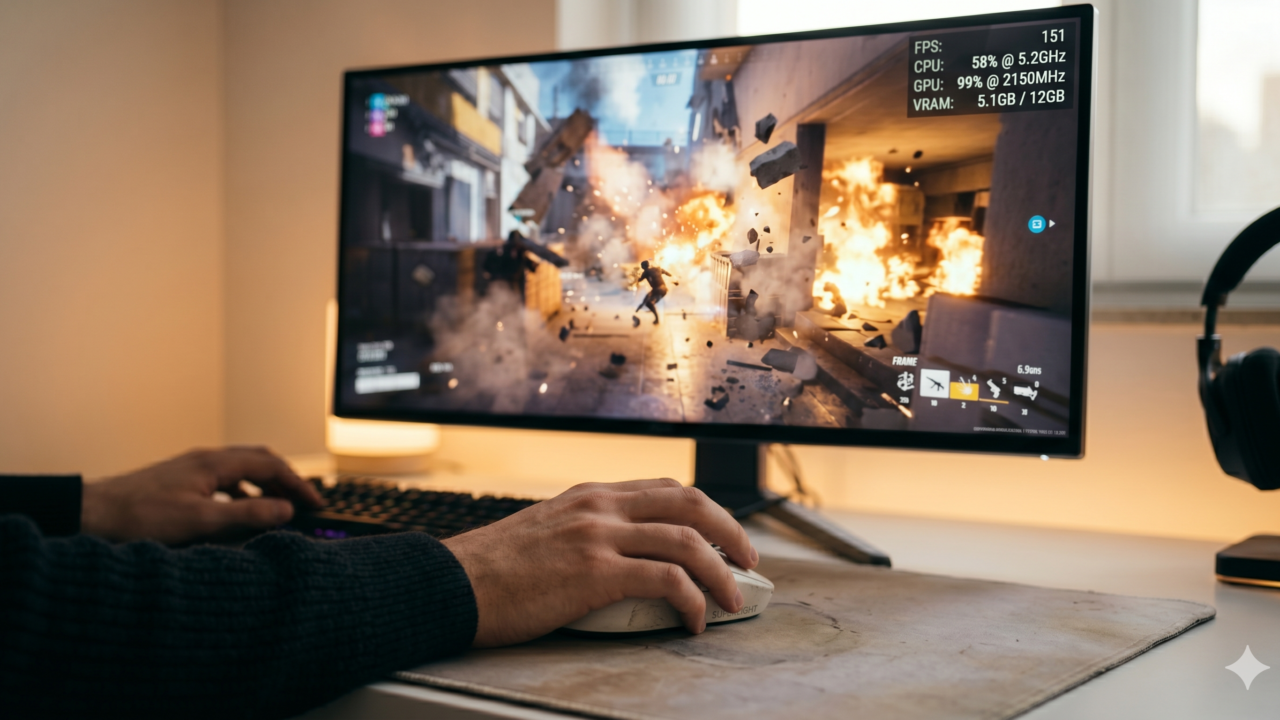
Unlike low FPS, which results in a universally slow experience, stuttering is characterized by inconsistent frame times. Even if your average FPS is high, these spikes make the game feel broken. This guide provides the technical workflow to diagnose and eliminate stuttering, ensuring your gameplay remains fluid.
Why Stuttering Occurs: Frame Time Inconsistency
To fix stuttering, you must understand frame times. Your monitor displays a set number of frames per second. If your GPU and CPU deliver these frames at irregular intervals—for example, one frame takes 16ms to process, but the next takes 50ms—you perceive a “hitch.”
Common culprits include:
-
Shader Compilation: Modern engines often compile shaders while you play, leading to “shader stutter.”
-
CPU Bottlenecks: The processor cannot keep up with the rendering instructions.
-
Background Processes: Unseen software tasks stealing system resources.
-
Driver Conflicts: Corrupted or outdated GPU instructions.
The Diagnostic and Fix Workflow
1. Update and Clean Your GPU Drivers
If you are seeing consistent stutters across multiple titles, your graphics driver is the first suspect.
-
Clean Install: Do not just update. Use Display Driver Uninstaller (DDU) to completely wipe your old drivers before installing the latest version from NVIDIA or AMD. This removes conflicting registry keys that simple installers leave behind.
2. Manage Shader Cache (The Shader Stutter)
If stutters occur mostly in open-world games when you enter new areas, it is likely shader compilation.
-
NVIDIA Users: Open the NVIDIA Control Panel > Manage 3D Settings > Shader Cache Size. Set this to “Unlimited” or at least 10GB. This forces the GPU to store pre-compiled shaders on your SSD rather than forcing the CPU to compile them on the fly.
3. Check Thermal Throttling
If your stuttering starts after 20–30 minutes of gaming, your hardware is likely overheating.
-
Use software like HWMonitor to track CPU and GPU temperatures. If you see temperatures hitting 90°C+ and clock speeds dropping simultaneously, your hardware is downclocking to prevent damage. Clean your fans, ensure airflow, or consider re-pasting your thermal compounds.
4. Optimize System Latency
Background apps are resource thieves. Ensure you have minimized non-essential background processes. If you haven’t yet, follow our Guide to Optimizing Windows 11 for Gaming to strip away the OS-level bloat that creates these performance spikes.
Advanced Tips for Expert Performance
Frame Rate Capping
The most effective way to eliminate perceived stuttering is to create a consistent frame delivery. If your PC fluctuates between 80 and 120 FPS, it will feel choppy. Use an external tool like RivaTuner Statistics Server (RTSS) to cap your frame rate at a stable number (e.g., 75 FPS) that your hardware can maintain 100% of the time. A consistent 75 FPS feels significantly smoother than a fluctuating 80–120 FPS.
Disable Fullscreen Optimizations
Windows attempts to “help” games by forcing specific display behaviors.
-
Right-click the game’s
.exefile > Properties > Compatibility > check Disable Fullscreen Optimizations. This forces the game to take exclusive control of the display, which often fixes erratic frame pacing in older titles.
Common Mistakes to Avoid
-
Installing “Game Boosters”: Avoid third-party software that claims to “optimize” your registry or RAM. These are almost always scams that introduce more background processes, actually increasing the amount of stuttering.
-
Ignoring RAM XMP Profiles: Many users build great PCs but forget to enable the XMP/DOCP profile in their BIOS. If your RAM is running at its default “base” speed (e.g., 2133MHz) instead of its advertised speed (e.g., 3600MHz), your CPU will be starved of data, causing massive stutters in open-world titles.
-
Running Games on HDDs: In 2026, playing modern games on a mechanical Hard Disk Drive (HDD) is a guaranteed cause of stuttering. Games stream assets constantly; an HDD cannot keep up. Always move your active game library to an SSD.
Expected Results
By systematically applying these fixes, you should expect:
-
Flat Frame Times: Monitoring tools will show a stable graph rather than sharp spikes.
-
Improved Visual Fluidity: The game will feel “connected” to your mouse movements, with no sense of hitching during fast-paced scenes.
-
Stability: Elimination of the “random” freezes that occur during gameplay.
Conclusion
Stuttering is a technical obstacle, not a permanent state of your hardware. By focusing on driver cleanliness, shader management, and frame consistency, you can transform a jarring experience into a smooth, professional-grade gaming session. If you are still experiencing issues after these steps, it may be time to look into hardware upgrades, such as upgrading your RAM or moving to an NVMe SSD. For the best experience, pair your optimized system with a reliable peripheral, such as the mice recommended in our The Best Free PC Games of 2026: Top Titles You Can Download Today guide.