
Mouse: P.I. For Hire – Ultimate Guide: Performance, Settings, and Optimization (2026)
Mouse: P.I. For Hire is easily the most visually striking boomer-shooter to hit the market in 2026. Fusing the frantic, fast-paced gameplay of classic 90s shooters with an authentic 1930s “rubber-hose” animation style, the game is a technical masterpiece. However, that unique aesthetic comes with a cost: it requires precise optimization to ensure that the hand-drawn chaos doesn’t compromise your input latency.
If you are struggling with frame drops during intense combat, or if the “Noir” aesthetic is making it difficult to track enemies, this comprehensive guide will help you configure your system for professional-grade performance.
Understanding the Engine: Why Mouse is CPU-Intensive
Unlike modern AAA titles that rely heavily on GPU-based ray tracing, Mouse: P.I. For Hire is highly CPU-dependent. The unique animation system, which renders hand-drawn frames in real-time within a 3D environment, puts a significant load on your processor. If you notice “hitching” or stuttering when multiple enemies are on screen, it is likely because your CPU is struggling to draw the animation frames while processing the physics for projectiles.
Read also: Monster Hunter Stories 3 Release Date: PS5 Launch
Graphics Settings: Visual Fidelity vs. Competitive Clarity
1. Motion Blur and Film Grain
Recommendation: Disable completely.
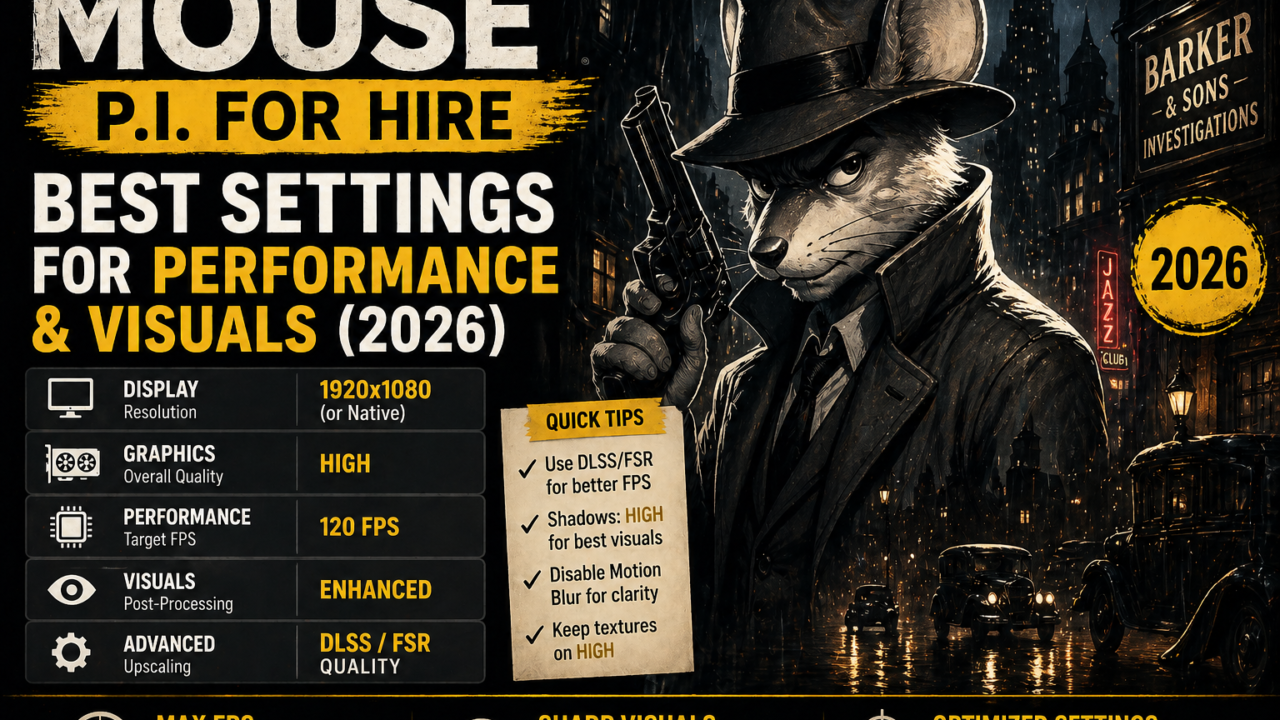
In a competitive FPS, motion blur is the enemy. It artificially smears pixels during movement, which masks enemy silhouettes. In Mouse, disabling these two settings is mandatory if you want to see targets clearly against the detailed, monochrome backgrounds.
2. Noir Filter Intensity (The “Sweet Spot”)
Recommendation: 50% – 60%.
The “flickering” effect is a staple of the noir genre, but at high intensity, it creates a visual “strobe” that can trigger eye strain and make tracking movement impossible. Lowering this to 60% retains the atmosphere while keeping the combat arena readable.
3. Shadow Resolution & Global Illumination
Recommendation: High.
Shadows are part of the game’s art direction rather than just a lighting effect. They define the shape of the enemies. If you need more FPS, don’t drop these to “Low.” Instead, try dropping “Post-Processing Quality” first, as it has a lower impact on gameplay visibility.
Advanced Performance Tweaks for 144Hz+ Gaming
To reach the 144Hz threshold, simple in-game settings aren’t enough. You need to optimize your entire pipeline:
- Input Latency Reduction: Go into your GPU Control Panel (NVIDIA or AMD Adrenalin). Ensure “Low Latency Mode” (NVIDIA) or “Anti-Lag” (AMD) is set to “On” or “Ultra.” This will force the CPU to prepare frames only when the GPU is ready, effectively reducing the time between your click and the shot on screen.
- Resolution Scaling: If you are playing on a 1440p or 4K monitor and struggling to keep FPS stable, use the internal resolution scaling set to 85%. You will gain significant headroom for your CPU without noticing a major loss in visual quality.
- The V-Sync Trap: Never use V-Sync. It is the number one cause of input delay in shooters. Instead, use your monitor’s G-Sync or FreeSync technology, or limit your frame rate globally to 3 FPS below your monitor’s maximum refresh rate.
System Requirements: The 2026 Standard
Because of the heavy animation processing, ensure your system meets the recommended specs. If you are still seeing stutters, ensure your game is installed on an NVMe SSD. Loading assets from a standard HDD will cause severe stuttering as the game tries to pull animation data on the fly.
Read also: Diablo IV: Lord of Hatred – The Ultimate Preparation Guide (April 2026)
Official Resources
For the most recent updates, performance hotfixes, and community build discussions, please refer only to these verified direct links:
Conclusion
Mouse: P.I. For Hire is a masterclass in style, but it demands respect from your hardware. By prioritizing input latency and visual clarity over “cinematic” settings like motion blur, you can turn a beautiful game into a competitive powerhouse. Do you have a specific hardware configuration you’re using to run the game? Share your specs in the comments!